Bad Habits Damaging Laptop: Today’s time has completely transformed into the Digital Era. Whether it’s Corporate Work, Online Classes, Content Creation, or just Entertainment — laptops have become an integral part of our lives. We buy them with great enthusiasm, but unknowingly, some of our own Bad Habits become the main reason for Damaging the Laptop.
Very few users realize that their small careless actions are slowly hollowing out their system from within. Gradually, the performance drops, battery life starts to decline, and in the end, you might face heavy repair costs. From a Tech Expert’s perspective and based on analytical data, here’s an analysis of the 10 bad habits you should quit right away.
1. Using the Laptop Only on Battery Power
Many people believe it’s better to always use a laptop on battery mode, but that’s a myth. Lithium-ion (Li-ion) batteries have a limited ‘Charge Cycle’ (usually 300 to 500 cycles). When you repeatedly charge and discharge the battery from 0% to 100%, those cycles get consumed faster.
Expert Advice: Whenever electricity is available, keep your laptop connected to the Power Adapter. Modern laptops have a “Battery Bypass” feature that uses AC power directly once fully charged, thereby maintaining Battery Health.
2. Using Cheap or Unbranded Chargers
In an attempt to save money, buying a cheap charger acts like ‘Slow Poison’ for your laptop. Cheap chargers often fail to regulate voltage properly.
- Risk Factor: Unstable voltage may damage the motherboard’s ICs.
- Solution: Always use the Original or Certified OEM Charger for your laptop model. It protects your device from short circuits and electrical damage.
3. Working on Bed or Sofa
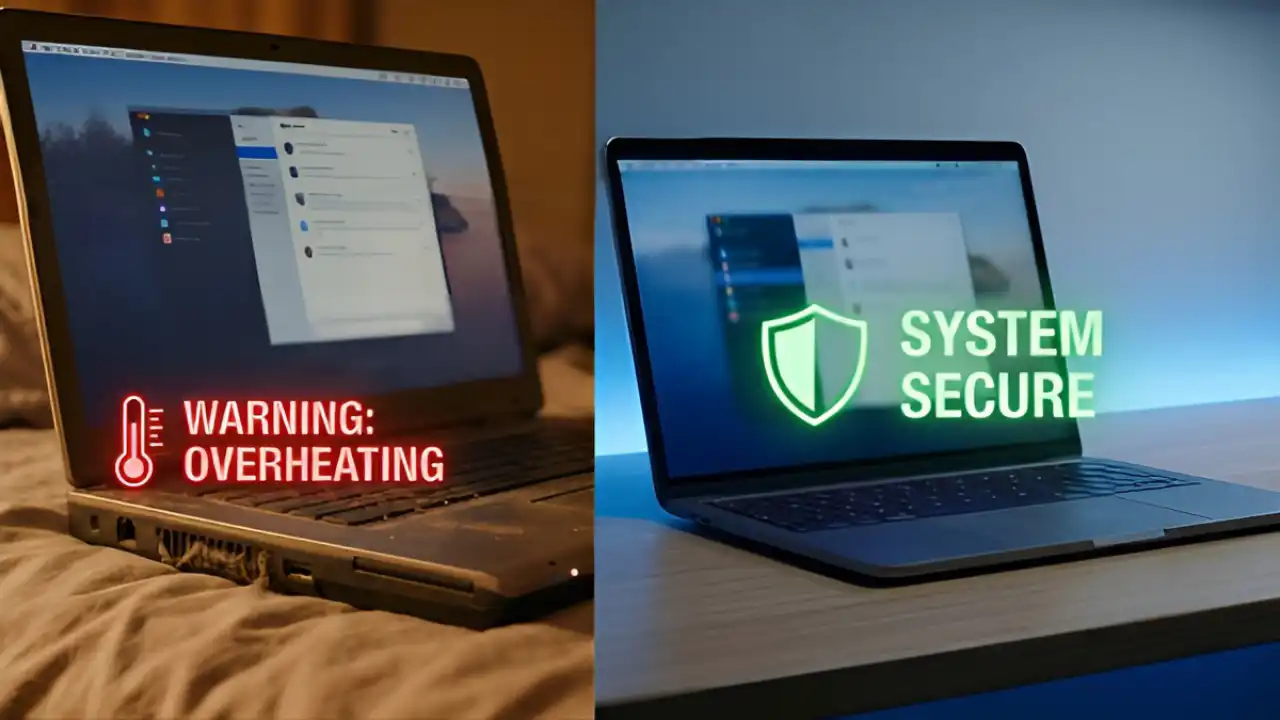
This is one of the most common yet dangerous habits. The soft surfaces of mattresses or sofas block the air vents at the bottom of the laptop. As a result, the hot air cannot escape, and the internal temperature rises rapidly.
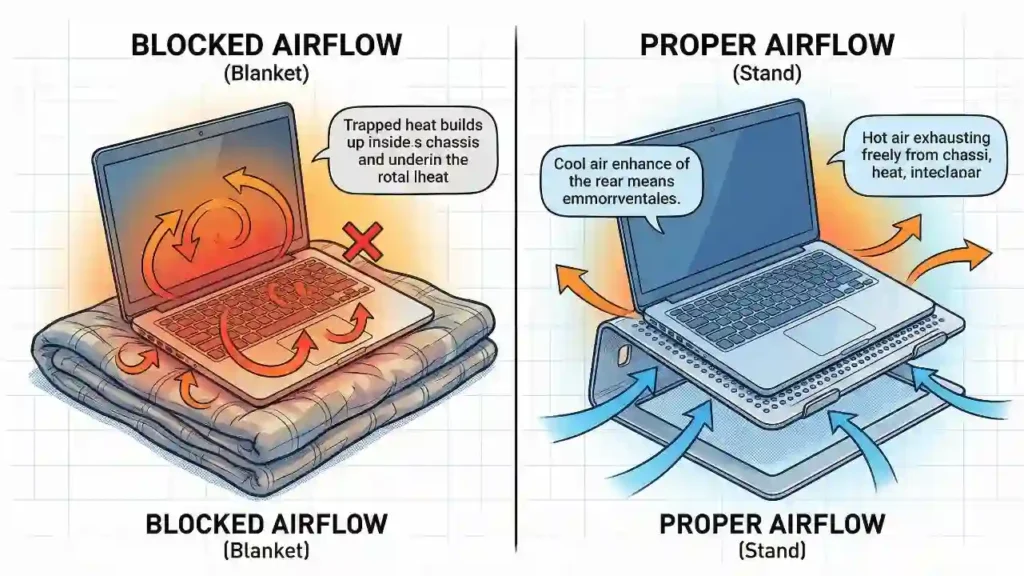
Thermal Throttling: When the processor (CPU) overheats, it automatically reduces its speed to prevent damage. To avoid this, always work on a flat surface or use a Cooling Pad.
4. Installing Heavy and Unnecessary Antivirus Software
In the past, third-party antivirus software was essential, but modern Windows 10 and 11 come with a built-in Windows Defender that offers robust security protection.
“Too many heavy antivirus programs put unnecessary load on your RAM and Processor, slowing down System Performance. A lightweight and reliable security tool is all you need.”
5. Falling for Fake ‘Free Cleanup’ and ‘PC Booster’ Apps
If you download “PC Speed Booster” or “Registry Cleaner” after seeing online ads, beware. These tools often display fake alerts and inject Adware or Malware into your system.
Best Practice: Always use Windows built-in tools like ‘Disk Cleanup’ or ‘Storage Sense’ to clean your laptop safely.
6. Continuously Ignoring System Updates
Clicking “Update Later” might feel convenient, but it puts your data at risk. Updates aren’t just for new features — they include critical Security Patches that protect against the latest Cyber Attacks and Ransomware.
7. Overloading the Desktop with Files
Is your desktop cluttered with files and folders? This habit increases your laptop’s Boot Time. Technically, every icon and file on the desktop consumes Graphic Resources and RAM while loading.
Pro Tip: Store your files in Documents, D, or E Drive, and keep your desktop clean for faster startup performance.
8. Neglecting Physical Cleaning of Laptop
Dust is the biggest enemy of electronics. Dust accumulated in vents and fans blocks airflow, leading to overheating issues.
Maintenance Schedule Table:
| Component | Frequency | Method |
|---|---|---|
| Screen | Weekly | Microfiber Cloth |
| Keyboard | Weekly | Soft Brush / Air Blower |
| Internal Vents | Every 6 Months | Compressed Air Can |
9. Using Unsecured Public Wi-Fi
Free Wi-Fi (like in cafés or airports) is often unsecured. Hackers can easily perform ‘Man-in-the-Middle’ attacks to steal your data. If using public Wi-Fi is unavoidable, always use a trusted VPN (Virtual Private Network) and avoid online banking or financial transactions.
10. Improper Way of Shutting Down the Laptop
Pressing the Power Button or closing the lid directly to turn off the laptop can corrupt Hard Drive and OS files. This may cause startup issues or the infamous ‘Blue Screen of Death’ (BSOD) error. Always use the Start Menu to properly select ‘Shut Down’ or ‘Sleep’.
Also Read
- Is ChatGPT tracking your every conversation? Change these 4 secret privacy settings from 2026 today!
- Is Your Phone Leaking Your Home Address? Stop Photo Location Tracking in 2 Minutes!
- Do you know why there are these small lines on the F and J keys of the keyboard?
- Stop Placing Your Laptop on Your Lap! 5 Serious Health Risks You Can’t Ignore