
ChatGPT Privacy Settings: In 2026, Artificial Intelligence is no longer just a technical buzzword—it has become an integral part of our everyday lives. Whether it’s creating office presentations or solving complex coding problems, ChatGPT is everywhere. However, along with this convenience comes a serious question: Is your personal data really safe?
Most of us assume that conversations with a chatbot stay strictly between us and the AI. But the reality is different. Under default settings, your conversations may be used to train AI models. Cybersecurity experts and tech analysts agree that when it comes to digital privacy, users can no longer afford to be passive—they must be proactive.
The good news is that OpenAI, keeping user feedback and global regulations in mind, has introduced several important updates to ChatGPT’s Privacy Settings. If you want full control over your data, there are four key settings you should review today. Let’s take an analytical look at how you can make your ChatGPT experience more secure in 2026.
1. Use ‘Guest Mode’
Often, we just want to ask a quick question, but we end up logging in and saving the entire session to our account history. In 2026, the smartest approach is using Guest Mode (using ChatGPT without logging in).
This feature is a game-changer for users who don’t want their random searches tied to their main account. When you use ChatGPT without an account:
- No Account Linkage: Your chat history isn’t linked to any profile, email address, or phone number.
- Limited Tracking: While OpenAI may retain data for up to 30 days for security purposes, it doesn’t become part of your personal AI profile.
Note: In Guest Mode, you may not get full access to advanced GPT-4o features like image generation or voice mode. However, for general queries and quick searches, this is one of the best privacy-friendly options available.
2. Temporary Chat Mode: The AI World’s ‘Incognito’ Window
Are you working on a confidential project? Or seeking advice on a personal or medical matter? In such cases, using regular chat mode can be risky. This is where the Temporary Chat feature becomes extremely useful.
You can think of it as the Incognito Mode of your browser. When you activate this mode:
- Chats are not saved in your history.
- These conversations are not used for model training.
- According to OpenAI’s policy, chats are automatically deleted from servers within 30 days (kept only temporarily for safety monitoring).
How to enable: Go to the model selection menu or the top-left menu and toggle on ‘Temporary Chat’. This ensures that sensitive information never becomes part of future AI models.
3. Turn OFF ‘Improve the Model for Everyone’ Immediately
This is the most important setting that nearly 90% of users overlook. By default, ChatGPT may use your conversations to improve its system—technically known as using them as training data.
If you don’t want your coding scripts, draft emails, or personal thoughts to be used for AI training, you must manually disable this option from Data Controls. This is an explicit opt-out process.
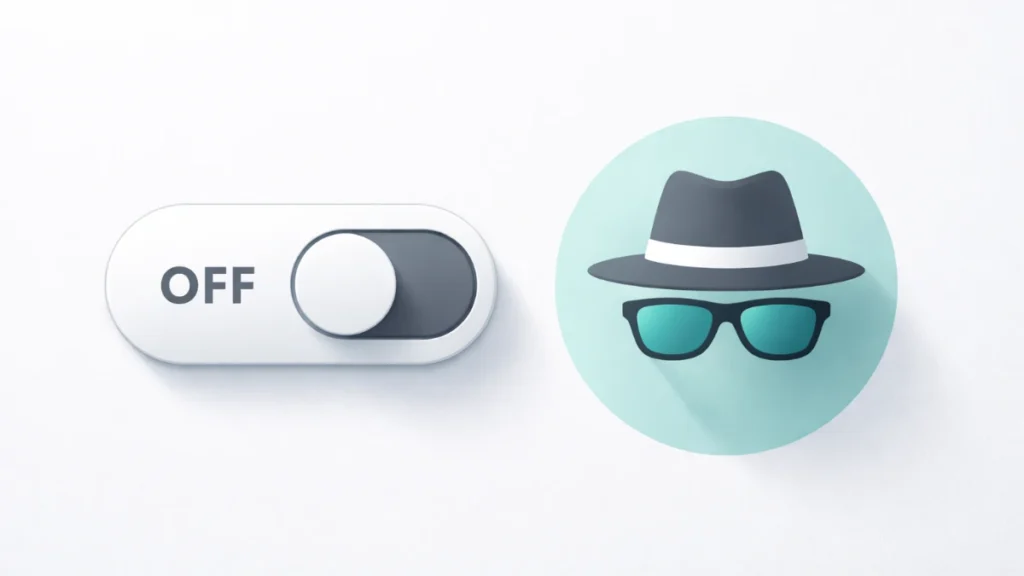
Step-by-Step Guide:
- Go to ChatGPT Settings.
- Click on the Data Controls section.
- Find “Improve the model for everyone” and turn it OFF.
Once disabled, you clearly instruct OpenAI to exclude your data from its training datasets. From a privacy standpoint, this is one of the most critical settings of 2025–26.
4. Manage the Memory Feature
Towards the end of 2025 and into early 2026, ChatGPT’s “Memory” feature gained popularity. This feature allows the AI to remember your preferences, profession, and past interactions to provide more personalized responses.
However, for privacy-conscious users, this can be a concern. If you don’t want the AI to build a digital profile about you, you can either clear specific memories or disable the feature entirely.
- Manage Specific Memories: Go to settings to see what ChatGPT has saved about you and delete individual details such as “my birthday” or “my boss’s name.”
- Turn Off Completely: Navigate to Settings > Personalization and switch off Memory.
This is especially important if you use the same account for both personal and professional tasks. It helps reduce the risk of data mixing, also known as data contamination.
Also Read